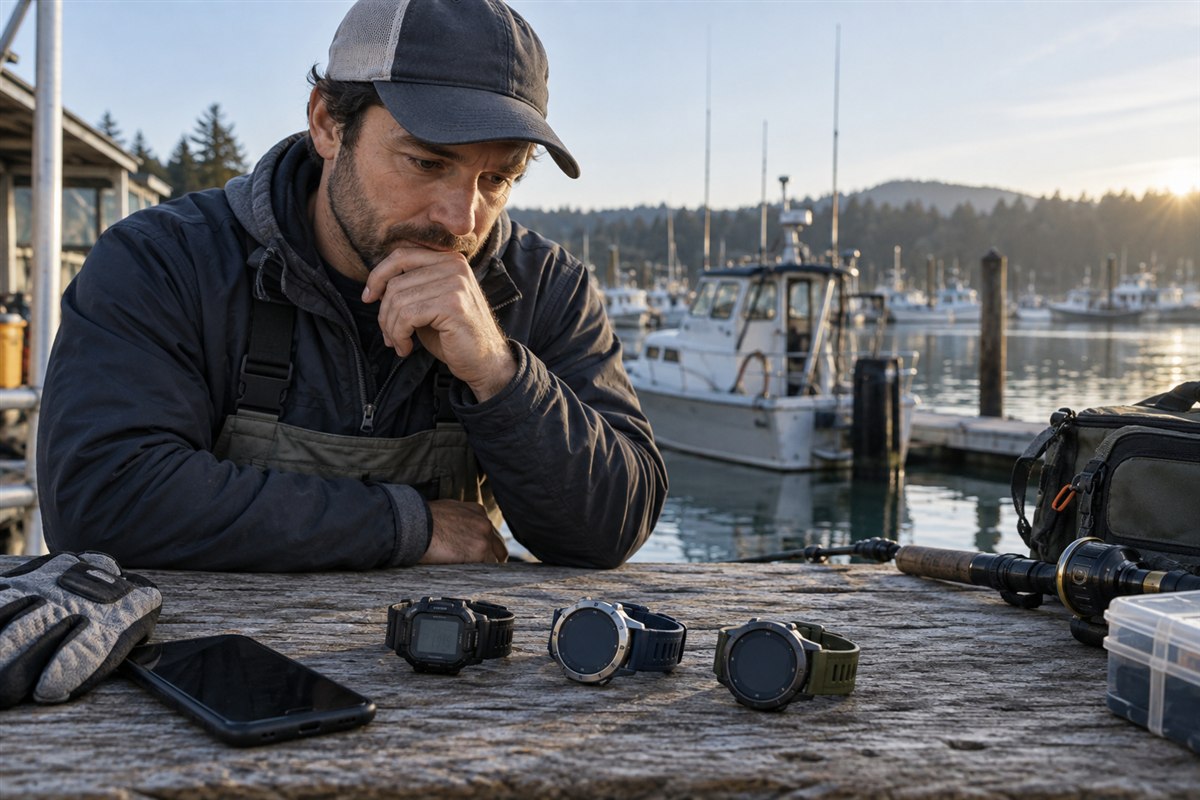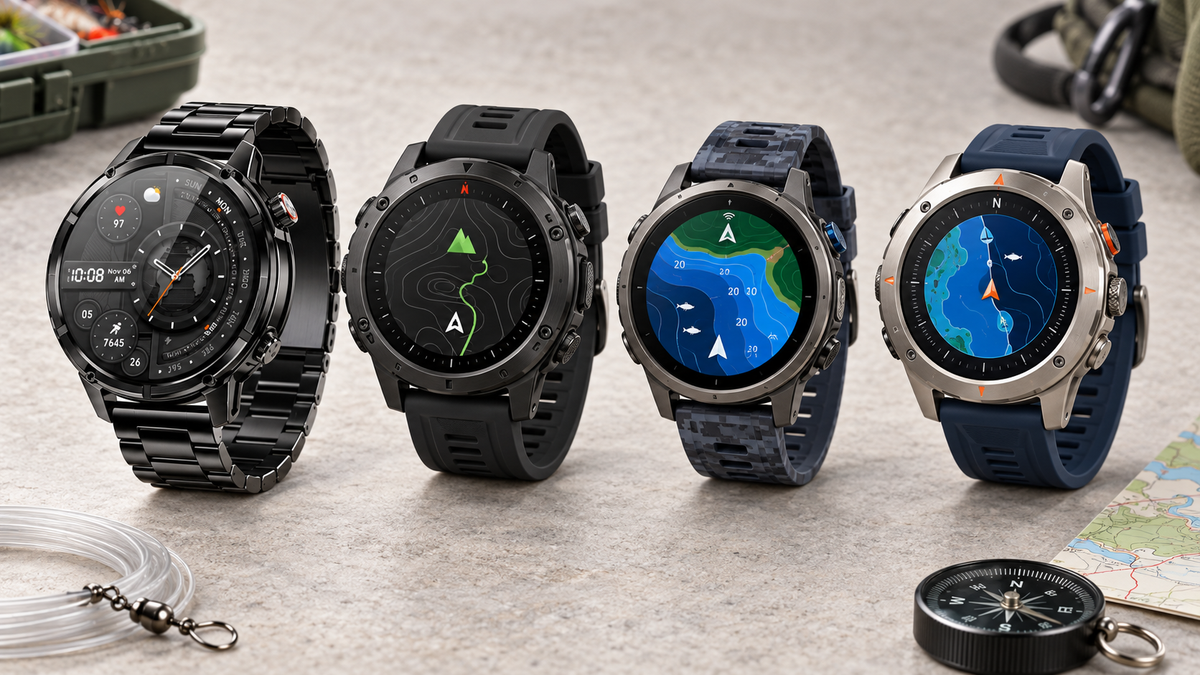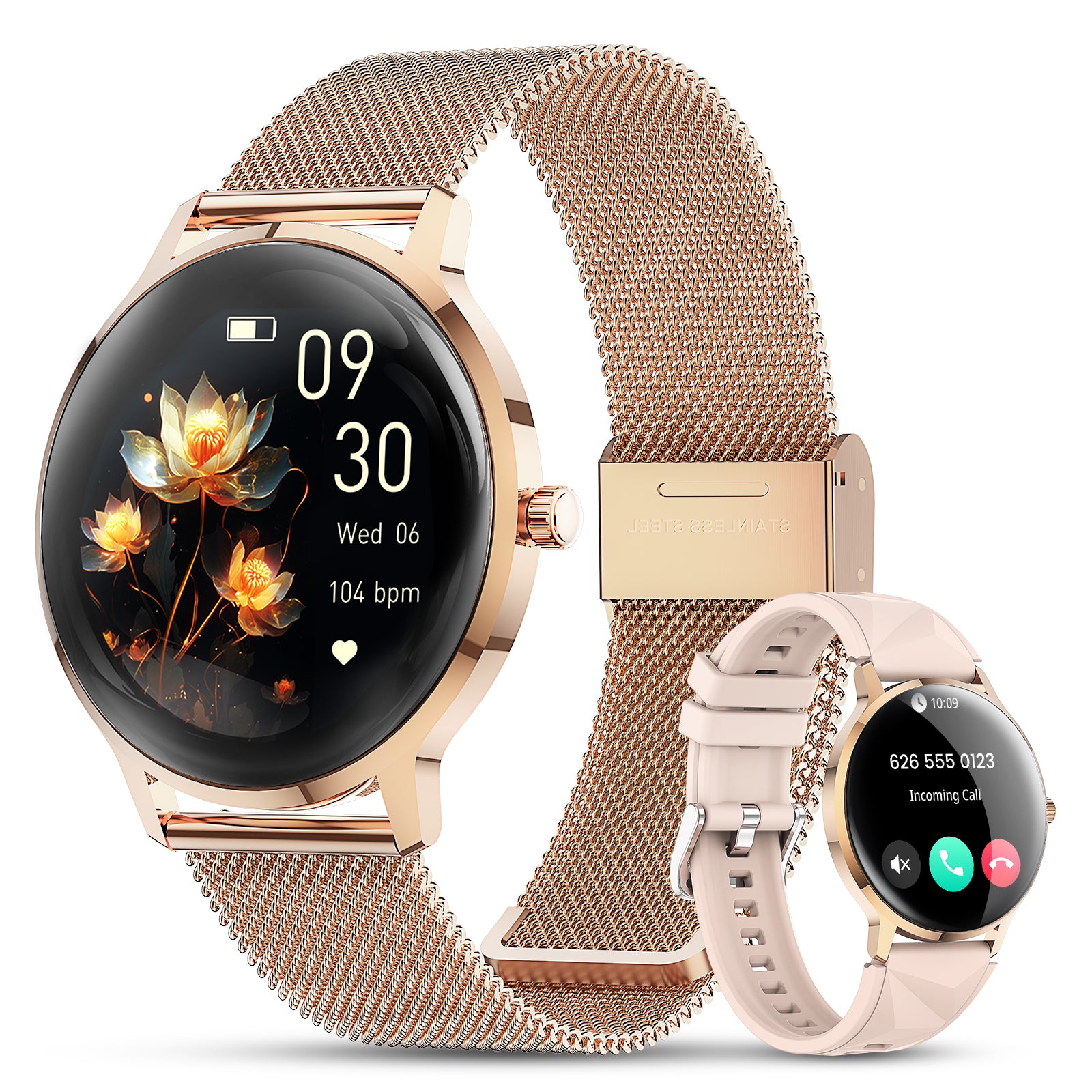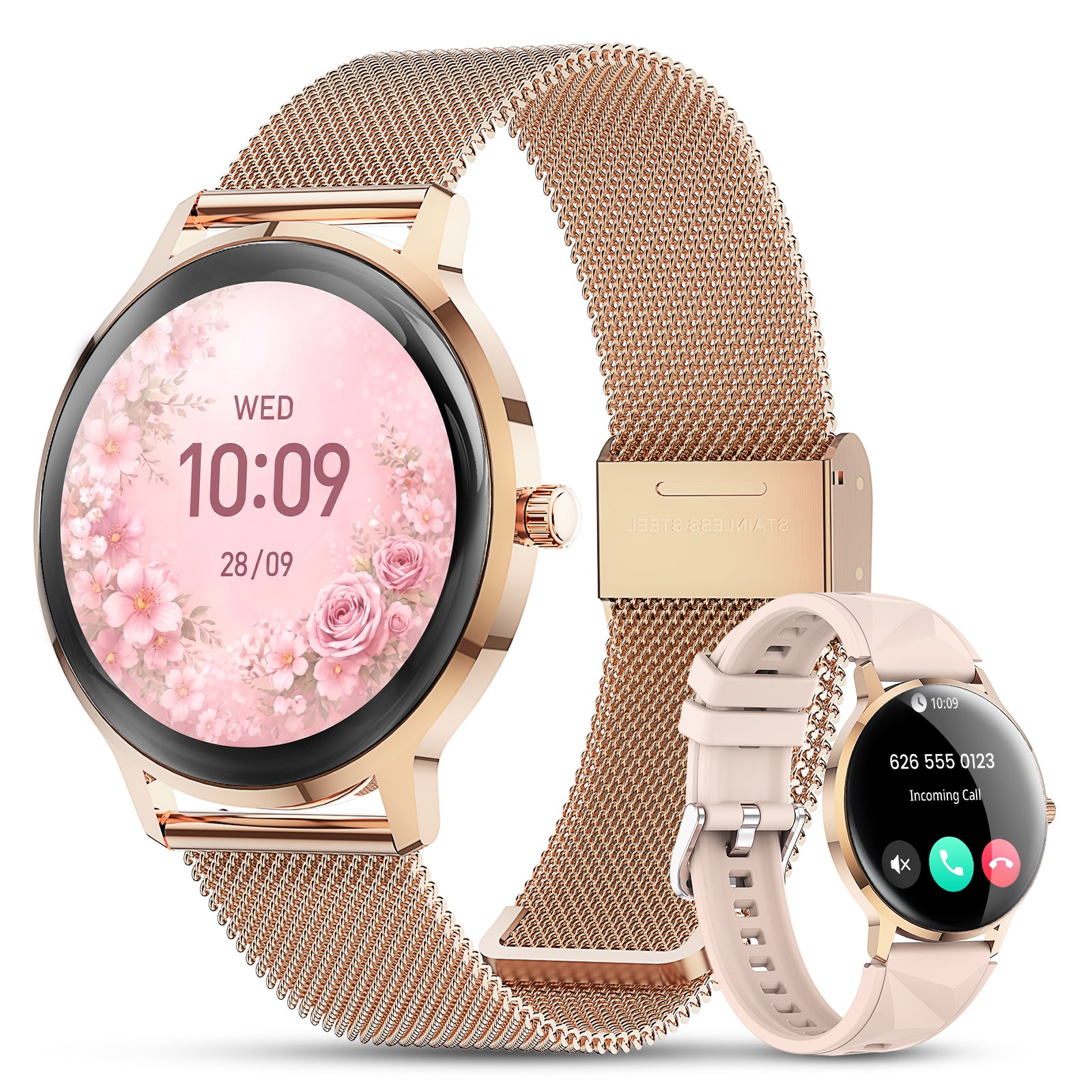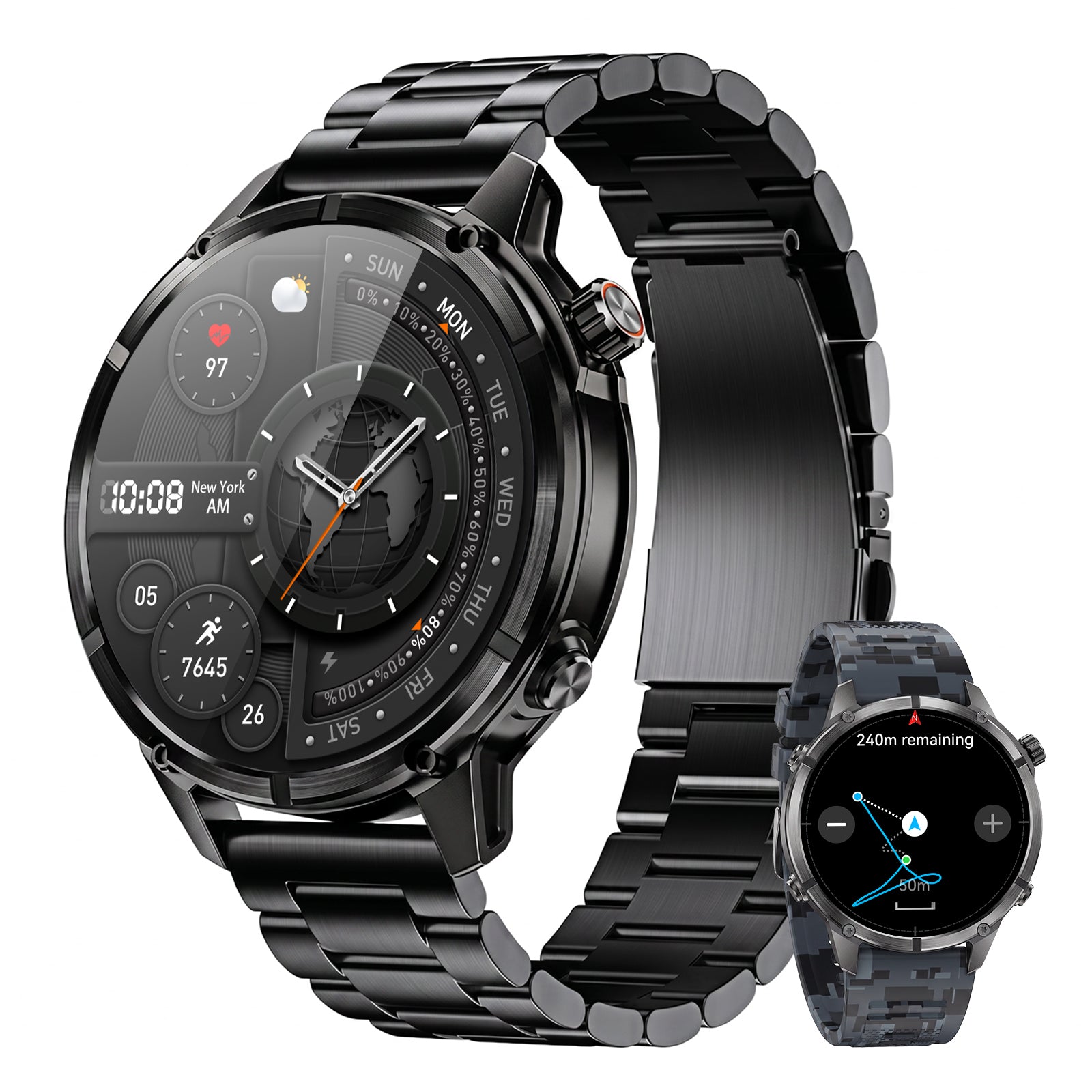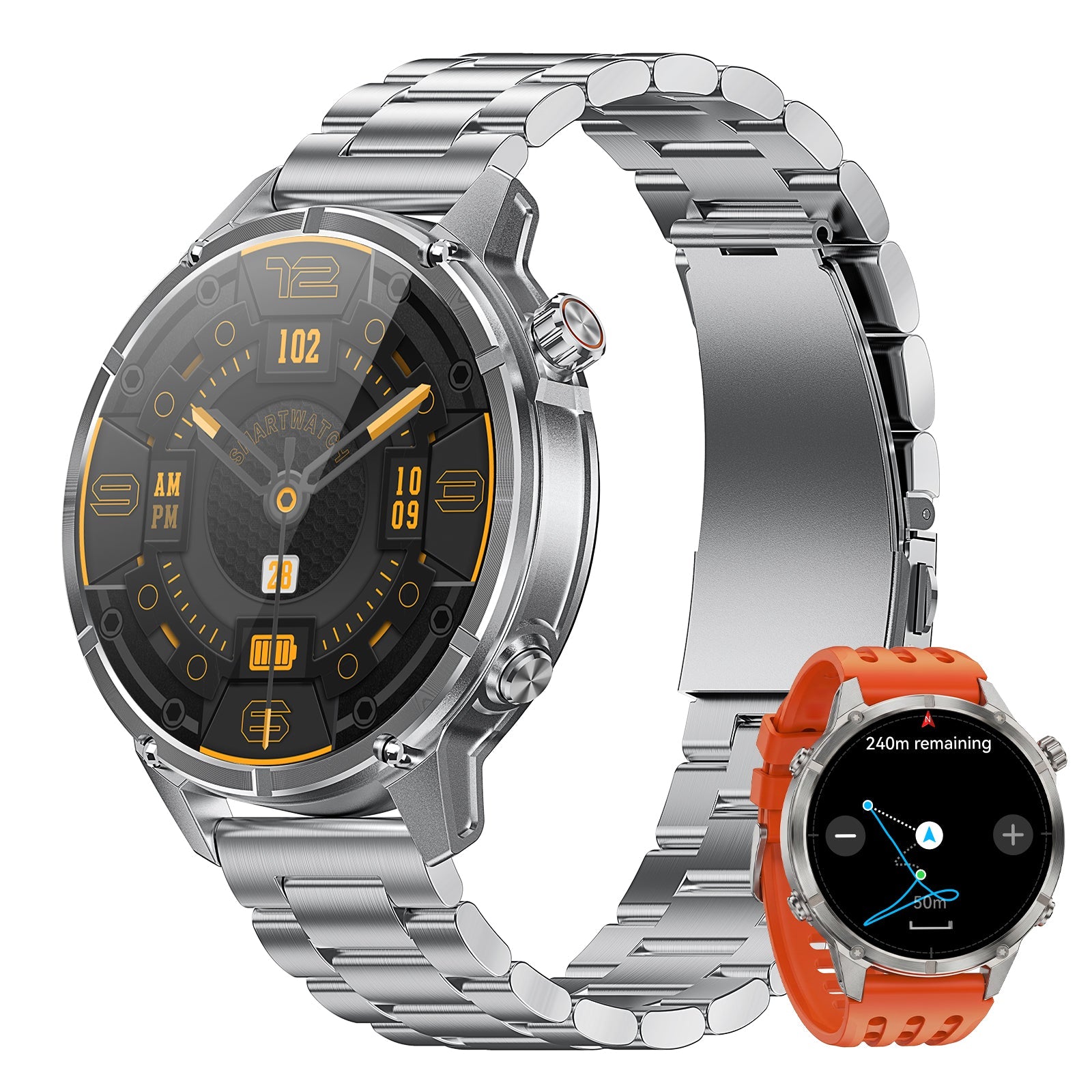


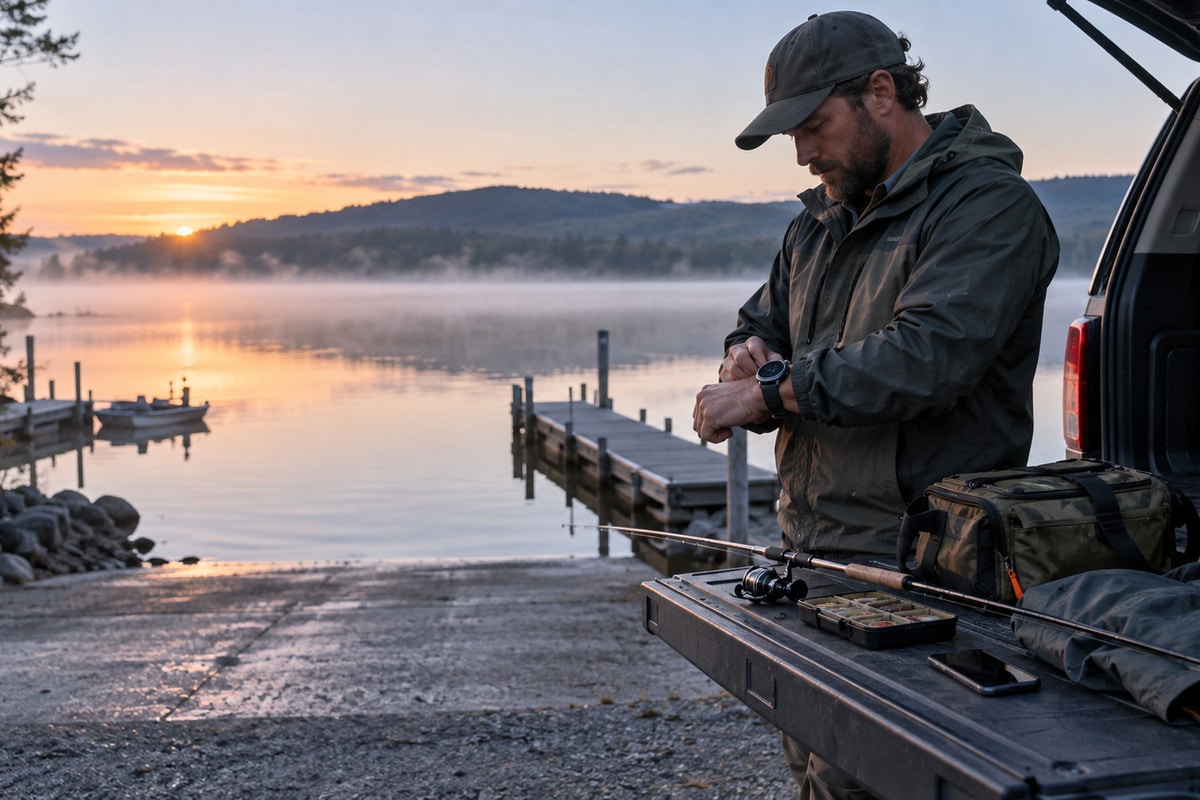
Quick answer: charge and sync the watch at home, test GPS on a short outdoor route, start a compatible activity after location lock, then stop, save and sync after fishing. Use the phone for detailed forecasts, maps and communication.
Before, During and After
- Before: allow about two hours for charging, connect GloryFit Pro, sync and test GPS outdoors.
- During: confirm recording, use quick wrist checks and keep the phone available for maps and official information.
- After: stop and save the activity, dry the watch, sync and add fishing notes separately.
| Stage | Do this | Do not assume |
|---|---|---|
| Before | Charge, connect, sync, test GPS and check the forecast | Connected weather will stay current without the phone |
| During | Confirm recording and use quick checks on stable ground | The watch provides maps, backtracking or rescue communication |
| After | Stop, save, dry, sync and log the trip | GloryFit Pro is a specialist fishing log |
1. Know the Watch's Role
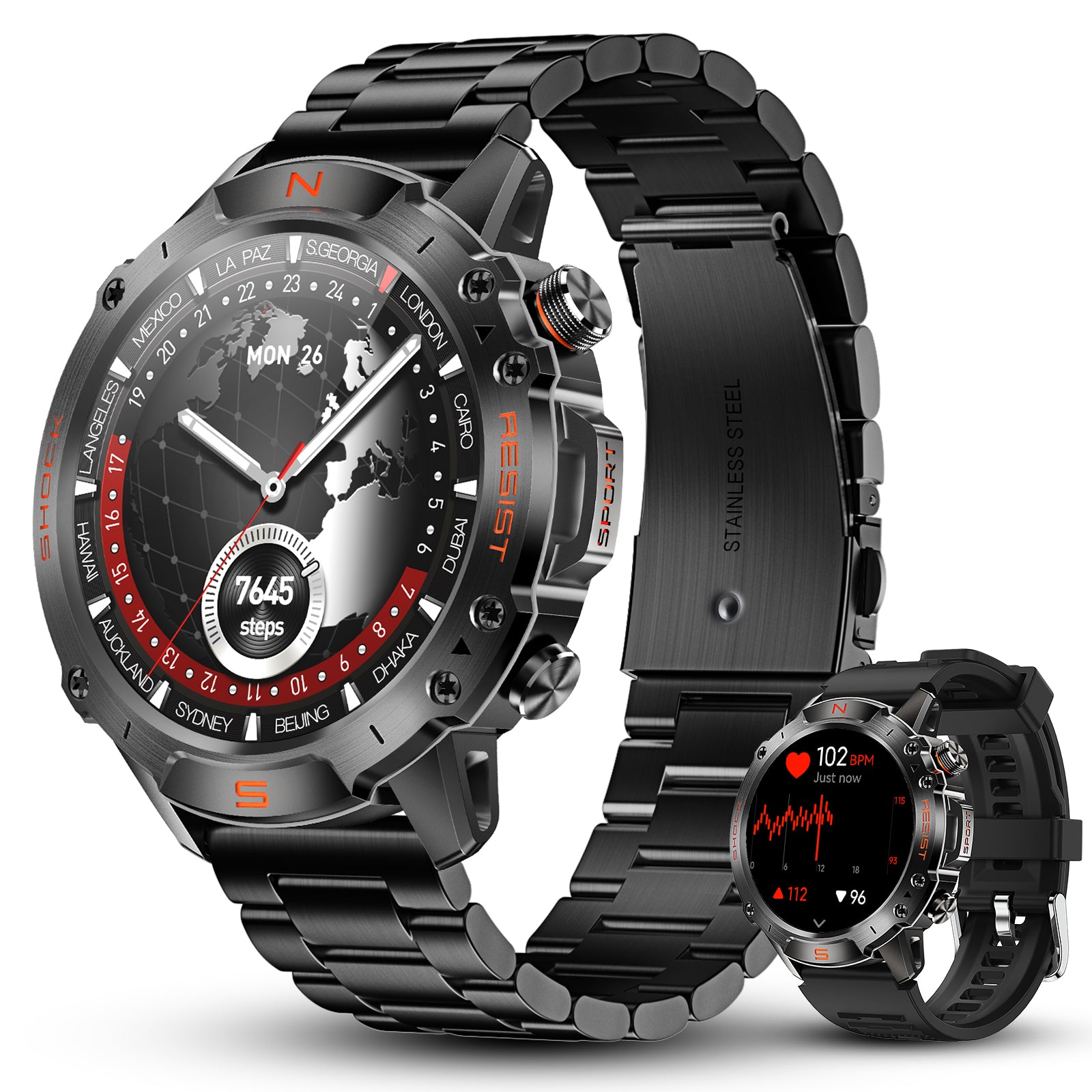
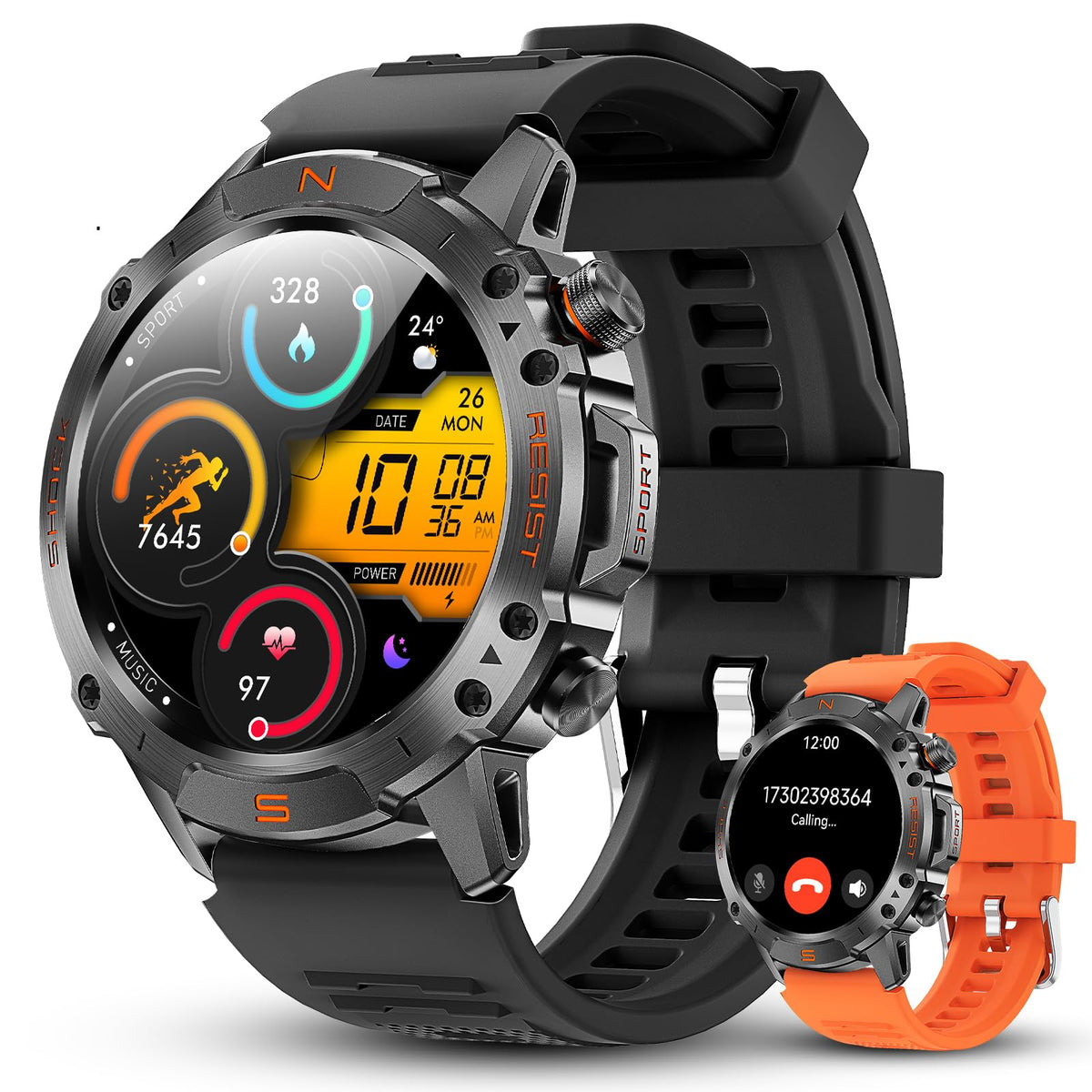
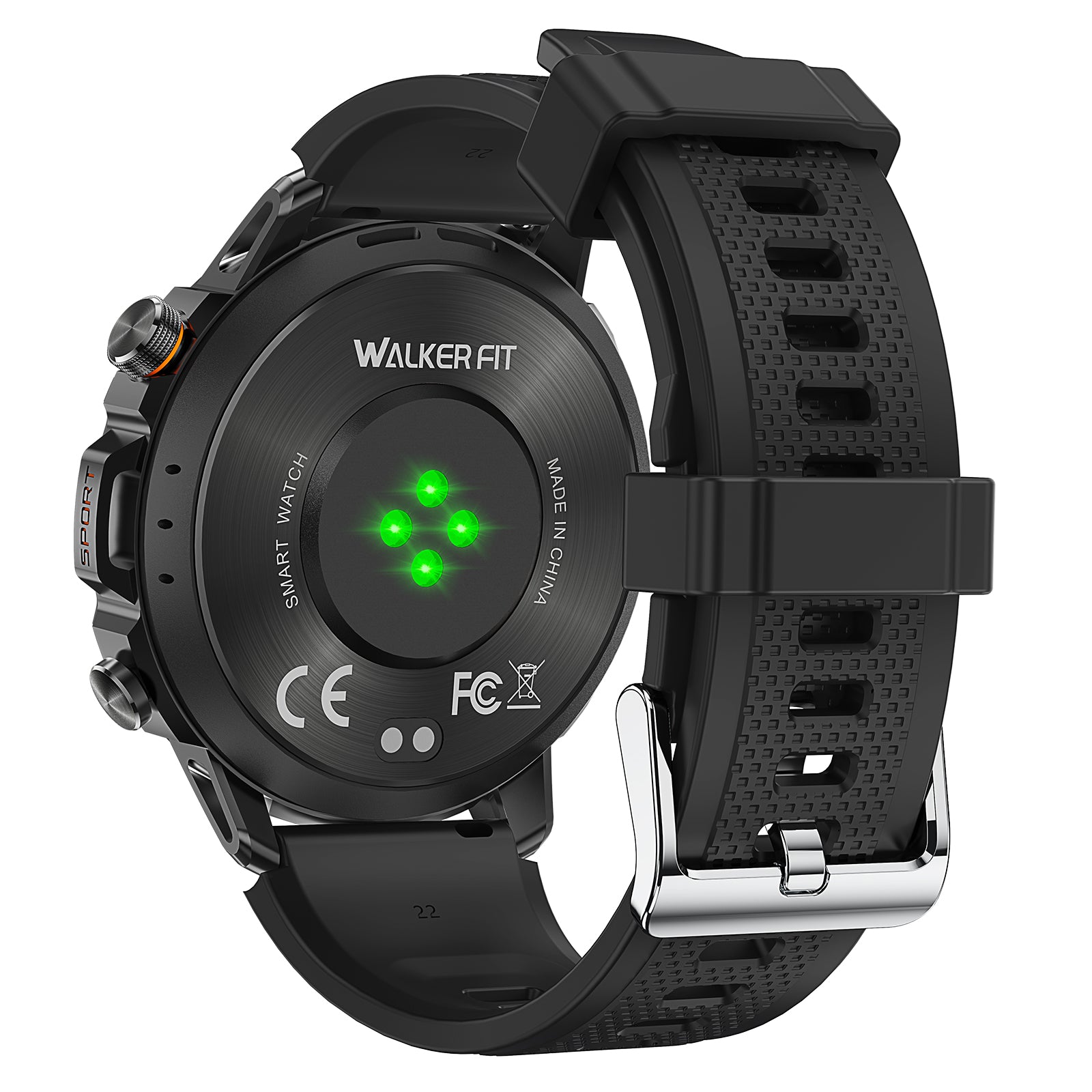
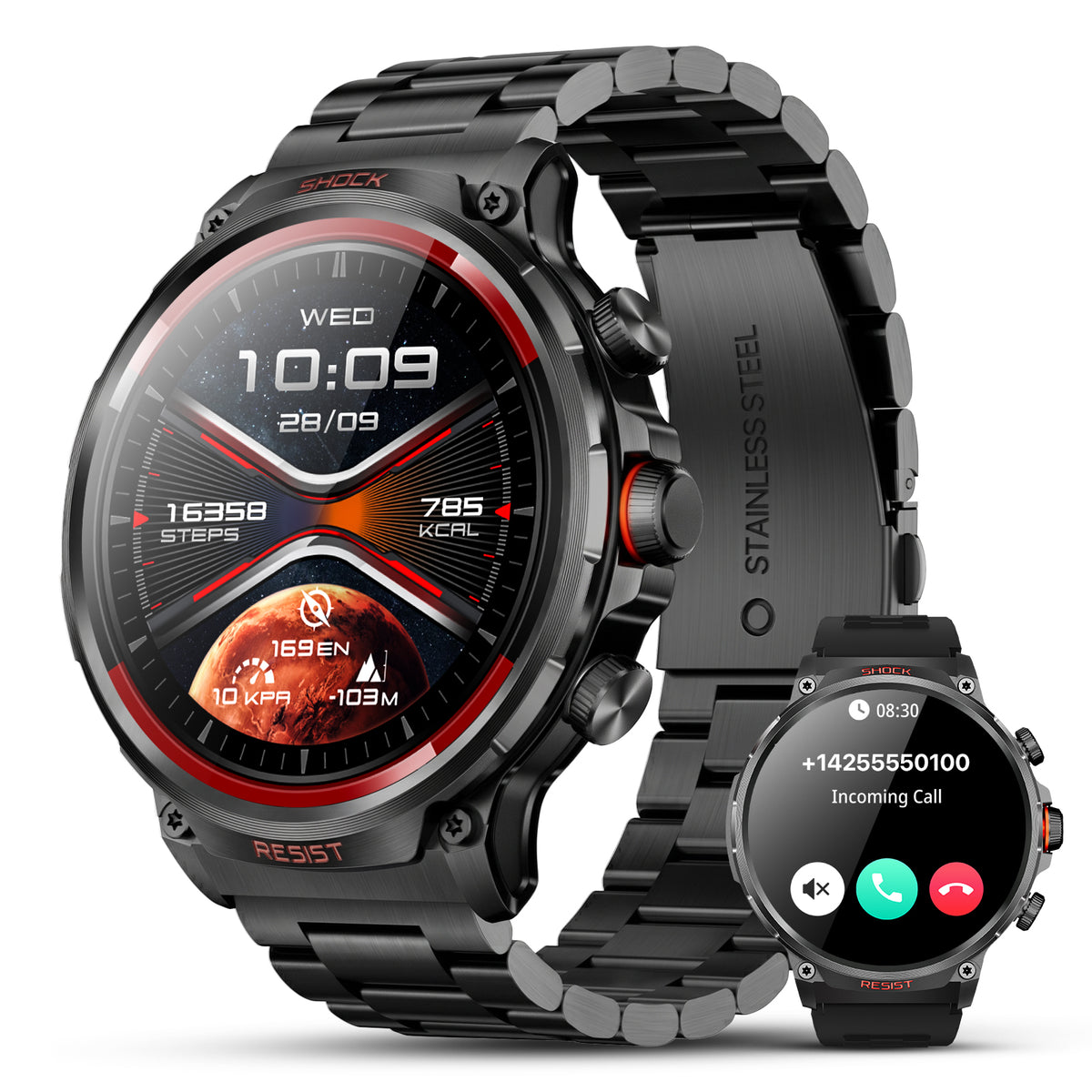
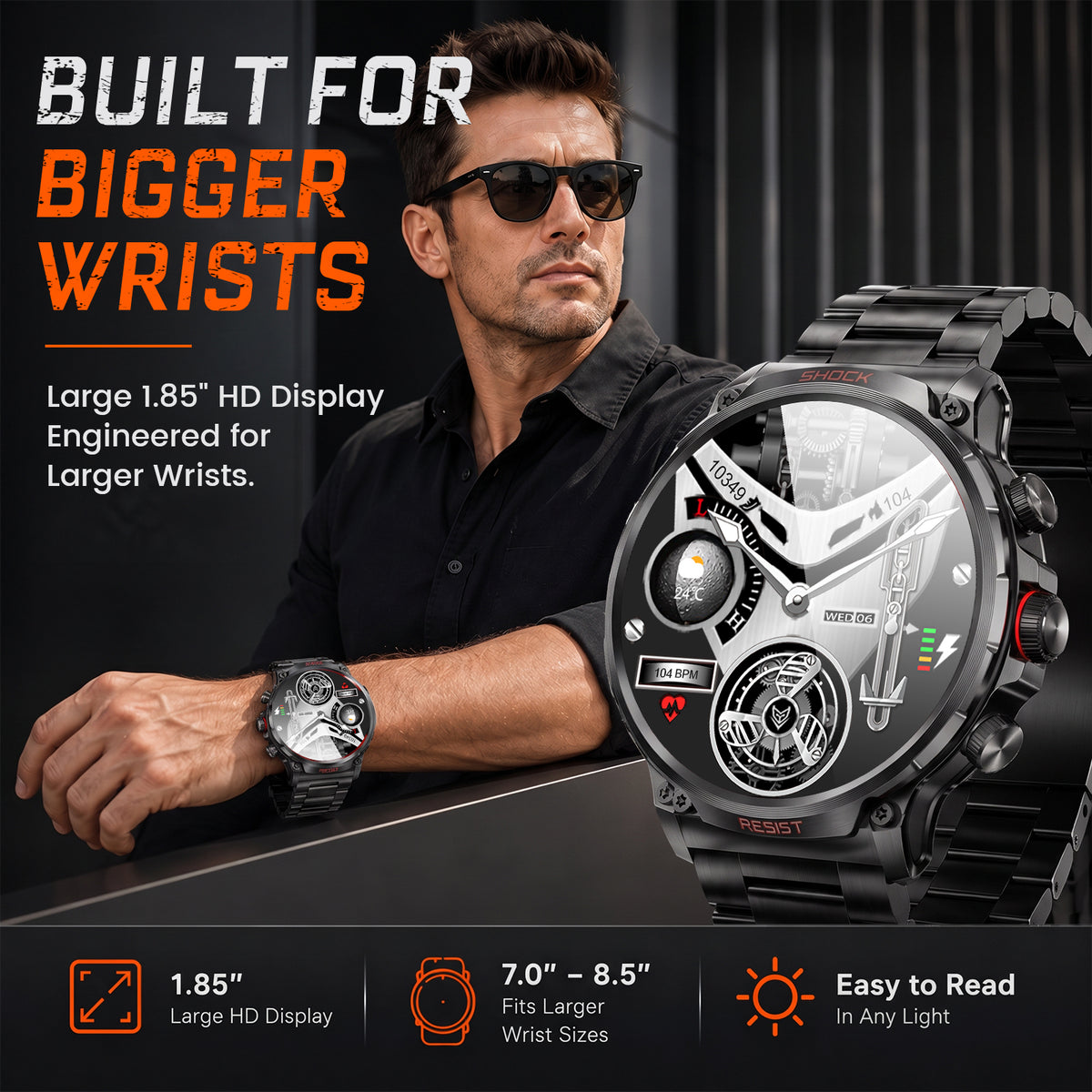
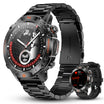
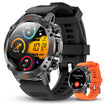
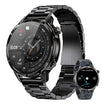
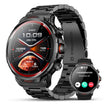
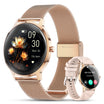
The WalkerFit Motion 6 GPS is a general outdoor smartwatch. It offers built-in multi-satellite positioning, route recording, compass, barometer, altimeter, a 1.43-inch AMOLED display rated up to 1,000 nits, four physical buttons and 5 ATM water resistance.
It can record a compatible outdoor activity and provide quick wrist information. It is not a fish finder, marine chartplotter, hazardous-weather receiver or satellite communicator. Use official forecasts and appropriate navigation and communication equipment.
2. Charge and Inspect the Watch Before You Pack
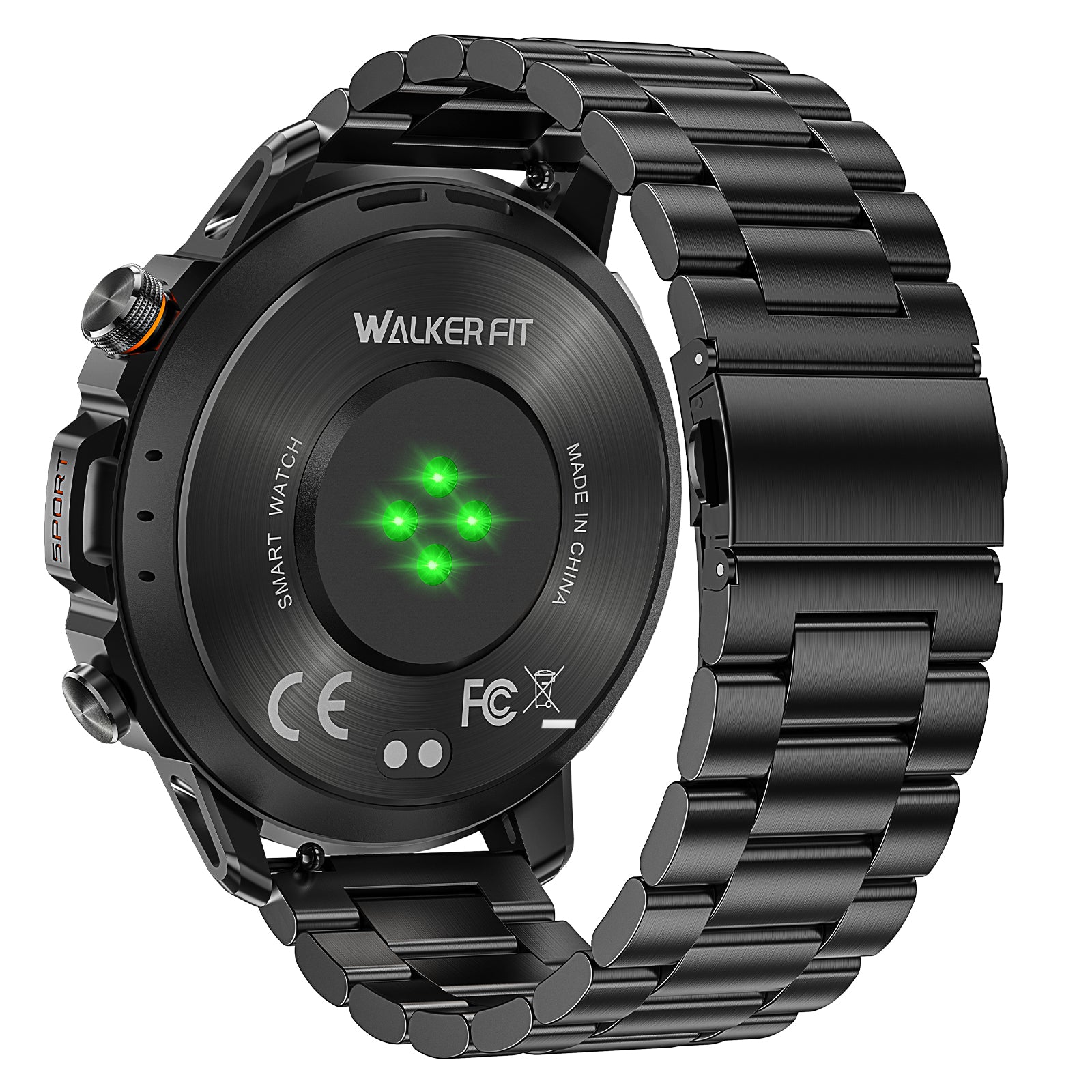
Charge the watch the day before the trip. The current product guidance indicates about two hours to charge, with a practical 2–3 hour planning window, plus up to 14–15 days of typical use and 20–24 hours of continuous GPS use. Real runtime varies with GPS, brightness, calls, connection, temperature and battery age.
- Inspect it. Dry the watch and check the band, buckle and charging contacts.
- Charge it. Seat the magnetic dock and confirm the battery indicator. Allow about two hours, with extra planning margin.
- Finish updates early. Recheck pairing and settings after any update. Never charge wet contacts.

3. Connect GloryFit Pro and Check Permissions
GloryFit Pro connects the watch, syncs activities, manages watch faces and controls notifications. It is not a specialist fishing app. Install it from the official app store, confirm the watch identity, and follow the prompts shown on your version.
- Confirm the app—not only the phone—shows the watch as connected.
- Grant only the Bluetooth, location, notification and background access needed for the features you use.
- Test one notification if you want alerts, or disable unneeded apps.
- Sync before leaving reliable service.
4. Test Outdoor GPS Recording Before the Real Trip
Built-in positioning means the watch can obtain its own satellite fix for compatible outdoor route recording. It does not mean every activity uses GPS, that positioning works instantly indoors, or that a route is a detailed navigational map. Test a short walk near home first.
- Go outdoors with a clear sky view.
- Open an available outdoor activity that clearly uses GPS; do not assume there is a fishing profile.
- Wait for the positioning status to show ready, then record a short loop.
- Stop, save and sync. Confirm the route and start point look reasonable.
Satellite positioning accuracy varies with surroundings, satellite geometry, interference and device placement. A successful neighborhood test does not make the watch a marine navigator. Carry the map, communication and emergency tools appropriate to the place and trip.
5. Check Fishing Conditions on the Phone—Then Sync What the Watch Uses
Use the phone and official sources for forecasts, access and regulations. Check NWS marine information, the correct NOAA tide station or relevant USGS gauge. Connected watch weather still depends on the phone, app, permissions and connection.
6. Start a Fishing-Day Activity Without Inventing a “Fishing Mode”
The official page says Motion 6 GPS supports 178+ indoor and outdoor sports modes, but this guide does not claim a verified dedicated fishing mode. Choose an available outdoor activity that matches the movement you want to record and that clearly supports GPS in your installed software. If the choices are unclear, test them beforehand and use the device documentation or current support guidance.
- Stand safely with a clear sky view.
- Check both batteries.
- Choose the tested activity and wait for GPS readiness.
- Confirm recording has started before putting the phone away.
If the signal is not ready, do not assume the route will repair itself later. Wait, reposition or proceed without depending on the track. Recording is optional; safe access and awareness are not.
7. Use Motion 6 GPS During the Trip
Use the watch for quick checks: confirm recording, glance at time or direction, and note pressure as context. Pause on stable ground before operating it. A track is not proof that a route is legal, safe or easy to return along.

Water resistance is not the same as invulnerability. Avoid pressing controls underwater unless the official instructions for your device explicitly permit it. After exposure, dry the watch and band before charging. For saltwater, chemicals, impacts, extreme temperature or high-velocity water, follow the product care instructions rather than extrapolating from “5 ATM.”
8. End the Activity, Sync and Review
Move to a safe dry place, stop the activity and confirm the save action. Reconnect the phone, open GloryFit Pro and wait until the activity appears.
Add fishing details separately: general location, effort, method, actual conditions and result. GloryFit Pro reviews watch activity; it is not a complete fishing journal. See the fishing app guide for logging options.


Motion 6 GPS
Built-in multi-satellite GPS and route recording, plus compass, barometer, altimeter, 1.43-inch AMOLED display, four physical buttons and 5 ATM water resistance.
$129.90$162.38
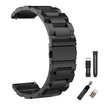
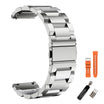
Compare the watch with other models on the WalkerFit comparison page, browse the outdoor watch collection, see compatible 22 mm bands, or review the product and setup FAQs.
9. Practical Verdict
Motion 6 GPS fits a fishing trip best as an outdoor activity watch: prepare it at home, let built-in positioning record a compatible route, use the compass, barometer and connected features as limited context, then sync and review afterward. The value is fewer unnecessary phone checks and a consistent record of movement—not a hidden set of fishing tools.
Keep the division of labor clear. The phone and official sources handle detailed forecasts, maps, tides, regulations and communication. A professional fishing app can handle forecasts or catch logs. Motion 6 GPS adds convenient outdoor recording and wrist access. That honest workflow is safer and more useful than pretending one device does everything.
Frequently Asked Questions
Q1: Does Motion 6 GPS work without a phone?
Its built-in satellite positioning can record a compatible outdoor route without using the phone for GPS. App syncing, connected weather, calls and notifications still require a compatible phone and the necessary connection and permissions.
Q2: How long does Motion 6 GPS take to charge?
Allow about two hours with the magnetic charging dock, with a practical 2–3 hour planning window. Confirm the displayed battery level before departure.
Q3: Does Motion 6 GPS have a fishing mode?
This guide does not claim a verified dedicated fishing mode. Choose an available outdoor activity that clearly supports the recording you need, and test it before the real trip.
Q4: Does Motion 6 GPS show fishing maps or waypoints?
This guide does not claim built-in fishing maps, chartplotting, waypoint management or backtrack navigation. Use appropriate phone maps or dedicated navigation equipment for the location.
Q5: Can the watch warn me about dangerous weather?
Do not treat it as an independent hazardous-weather warning receiver. Connected information depends on the phone, app, permissions and connection; verify critical warnings with official sources.
Q6: Is GloryFit Pro a fishing app?
No. GloryFit Pro is the companion app for watch connection, activity review, watch faces and notification settings. It is not a specialist tide, forecast, fishing-map or catch-log service.
Q7: What should I do if an activity does not sync?
Keep the watch and phone nearby, confirm Bluetooth and app connection, review permissions and phone battery restrictions, and allow the sync to finish. Follow current device support if the saved activity still does not appear.
Continue Reading
- Best Fishing Watch: What Anglers Should Look for
- Tide Watch for Fishing
- Barometric Pressure for Fishing
- Fishing Tides: How to Read Tide Tables
- Fishing Forecast and Calendar
- Best Fishing Apps
- Rugged Waterproof Smartwatch for Fishing
- GPS Watch for Fishing vs Phone
- Casio Fishing Watch vs Garmin Quatix and COROS